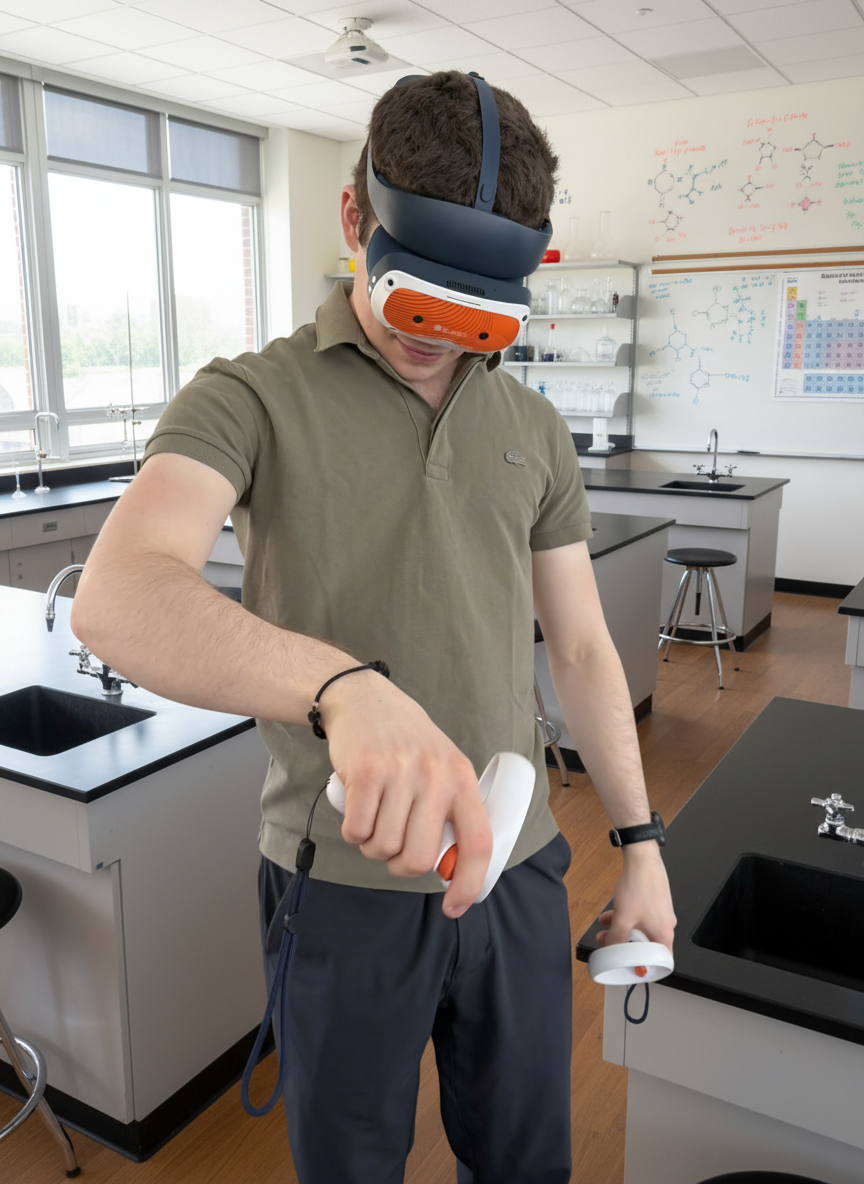
Proteus Labs tutorials and other resources to get familiarized with the ClassVR Xcelerate headset !
Getting started (english)
Proteus_ClassVR 1. Guided tour of the laboratory environment
Proteus_ClassVR 2. Using controllers to conduct the laboratories
Proteus_ClassVR 3. Virtual tablet features
F.A.Q.
You can find the How-to video tutorials in the “Getting started” section of the Proteus VR website that will provide you everything you need to learn how to navigate and work with the Proteus Labs app. You can also access a “Quick reference” guide about how to use the controllers at the bottom of this page.
This will usually occur when the manipulation described in the protocol has not been adequately completed. For example, if the protocol asks to fill half of a 500 mL beaker with water, if the student only puts 100 mL of water in the beaker, or on the opposite, fully fills the beaker, the check mark for that step of the protocol won’t appear. In that case, the student simply needs to repeat the manipulation and perform it accurately and the check mark will appear in the protocol.
Once you enter a laboratory, you will find a virtual table with various accessories in front of you. You can adjust the position of the lab by grabbing the blue sphere located just in front of the table. This allows you to position the virtual environment at the desired height and location to fit well with your actual location. This blue sphere is visible when you enter a laboratory but will disappear after a few seconds. You can make it reappear at any time during a laboratory by clicking on the joystick of the right controller.
The full Proteus Labs syllabus, by categories, for every available lab (including Introduction, Educational Goals, Anticipated Outcomes, Summary of Assignment by Grade Range, Laboratory Essentials) can be found in the “Labs” section.
Yes. You simply need to go in the virtual tablet, go to the “Options “section and click on the “Send Results” button. This will allow you to send by email to the recipient of your choice the data related to the laboratory you have completed.
You will only need to click on the Edit button to enter the recipient’s email address in the designated space and then click on the small green check mark to proceed with sending the results.
The recipient will receive an email titled Your Results Proteus Labs, accompanied by an XLSX file. The file will include various data related to the completed laboratory, namely the protocol, the log of steps carried out, the guide, the summary of results obtained, and any pictures that will have been taken in the laboratory.
For now, Proteus Labs is a single player application. However, in the coming months, we will release a multiplayer version which will enable multiple students to be interacting live all together in the same lab. Stay tuned!
Yes. Even though each lab has a specific protocol linked to the lab objectives, the student can use the tools and substances available in each lab to play around and explore outside of the lab protocol.
When you need to grab small objects, pick up an accessory that is very close to another accessory, or place an object in a specific spot, just align the small green sphere located on the lower third of the middle finger of each hand with the object you want to manipulate. As soon as the small green sphere touches the object, it will highlight green, and you will simply need to press the button at the base of the controller to grasp the object and manipulate it with precision.
If you ever drop an object, it will automatically reappear on the table to prevent you from bending down to pick it up from the floor.
Your subscription to Proteus Labs gives you access to all the labs. As new labs become available in future updates, you will also have access to these new labs.
Yes. The app is available in multiple languages. You can select the desired language from the home page. Once a language is selected, the app will remain in that language until you select another language.
We do not collect personal information.
To install the updates, an internet connection is required. However, the app can be utilized without Wi-Fi connectivity in single-person mode.
Join our Community
Become part of our mission to transform education with augmented reality labs